RoboCanvas · Beta 1 Visual robot design → ROS 2 packages Free · runs in your browser · no account

Robotics is hard enough. Getting started shouldn’t be.

Getting into robotics can mean learning ROS 2, configuring packages, writing launch files, setting up simulations and connecting a whole stack of tools before you build your first robot. RoboCanvas brings robot design, configuration, validation and ROS 2 project generation into one visual workspace, so you can spend less time fighting setup and more time building.

  • Outputament_cmake package
  • ContainsURDF/Xacro, ros2_control, launch, Gazebo world
  • TargetROS 2 Jazzy · Gazebo Harmonic
  • WhereDesign in the browser, build on your machine
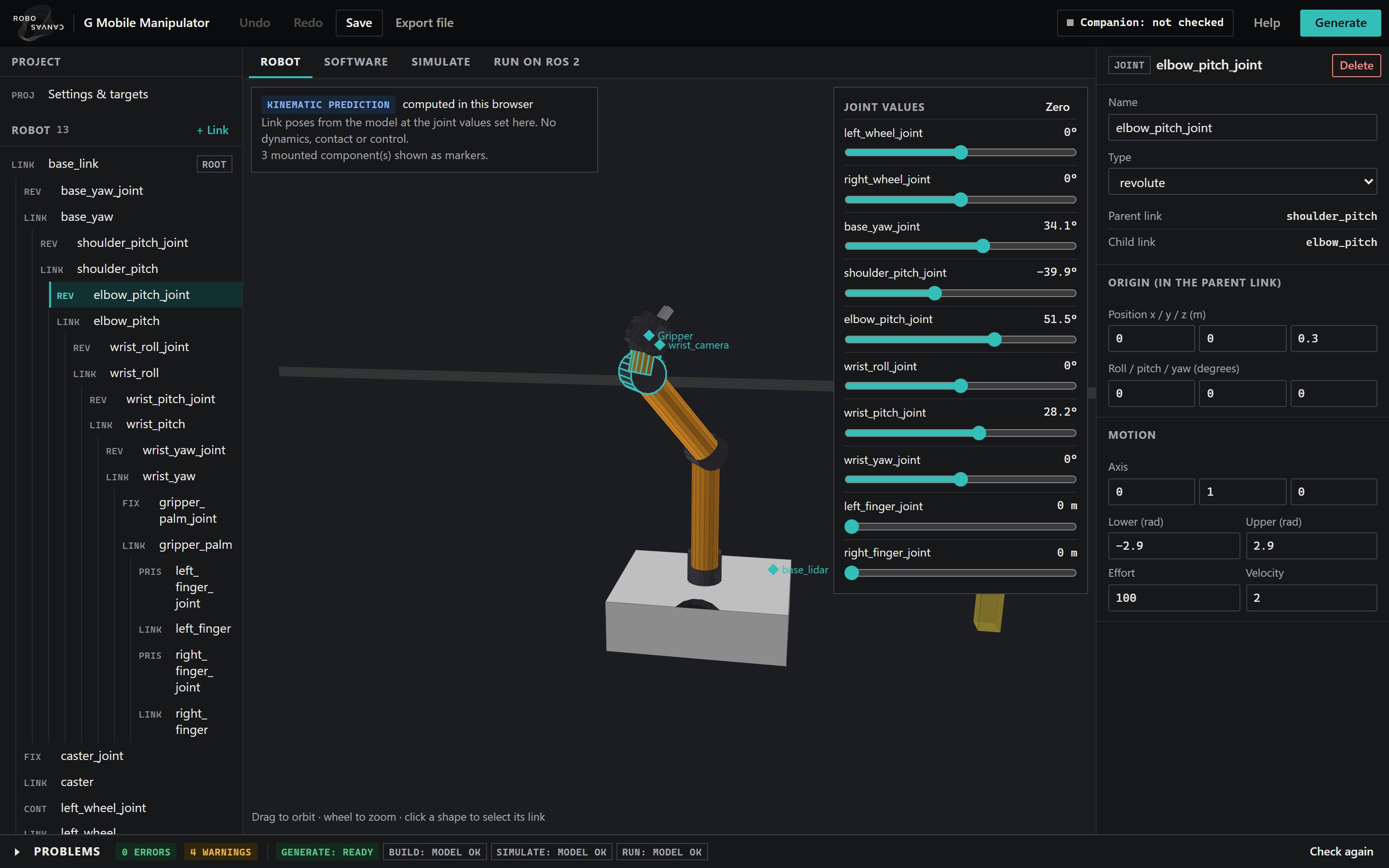
The RoboCanvas editor in its dark theme: the link tree on the left, a mobile manipulator with its arm raised in the 3D view, joint sliders, and the elbow joint's type, origin, axis and limits in the inspector.
01What it is

RoboCanvas is a visual workspace for ROS 2 robots. Links, joints, drives, arms, sensors and the software graph sit side by side in one project, so you can see how the pieces fit together. From it, RoboCanvas generates the package a ROS developer would otherwise write by hand, every file consistent with the others and ordinary enough to read, change and learn from.

Where the work happens
  1. 01

    Visual design

    In your browser

    Links, joints, drives, arms, grippers, sensors, a simple world and the ROS 2 node graph.

  2. 02

    Validation

    In your browser

    Errors block generation. Warnings say what a simulator will not do. Each names its fix.

  3. 03

    Code generation

    In your browser

    A ROS 2 package as a ZIP. Generating writes files; it builds and runs nothing, and says so.

  4. 04

    Local build

    On your computer

    colcon build in your own workspace, by hand or through the optional local companion.

  5. 05

    Simulation

    On your computer

    Gazebo Harmonic on Linux, or RoboCanvas's kinematic simulator. The preview in the browser is kinematic: no physics.

What sets it apart
  1. 01

    One project, the whole package

    Robot description, ros2_control controllers, launch files, a Gazebo world and the node graph are generated together and agree with each other. The same project always gives the same files.

  2. 02

    Drives and mechanisms as presets

    Pick a differential, Ackermann, skid-steer, mecanum or tracked drive and its joints, controller and launch setup come with it. Arms, grippers and sensors work the same way. How well each simulates.

  3. 03

    Robot and software, designed together

    The ROS 2 node graph sits beside the robot, so the topics, the controllers and the nodes that use them are planned in one place.

  4. 04

    Built on ros2_control

    The standard ROS 2 control framework, verified in Gazebo. Moving to hardware means adding a hardware interface for your motors, not restructuring the package. Not yet tested on a physical robot.

  5. 05

    Nothing to install, nothing locked in

    Design and generate in Chrome or Edge, free, with no account. The output is an ordinary ament_cmake package that builds without RoboCanvas.

  6. 06

    Tested in the open

    What has been verified, where and how well is published below, including the partial results and the open defects.

02How it works

Five steps from a robot to a running package.

01 / 05

Configure the robot

Start from a sample or a template. Edit links, joints and their limits in the inspector; add drives, arms, grippers and sensors from presets. Pose it with the joint sliders to check it moves as intended.

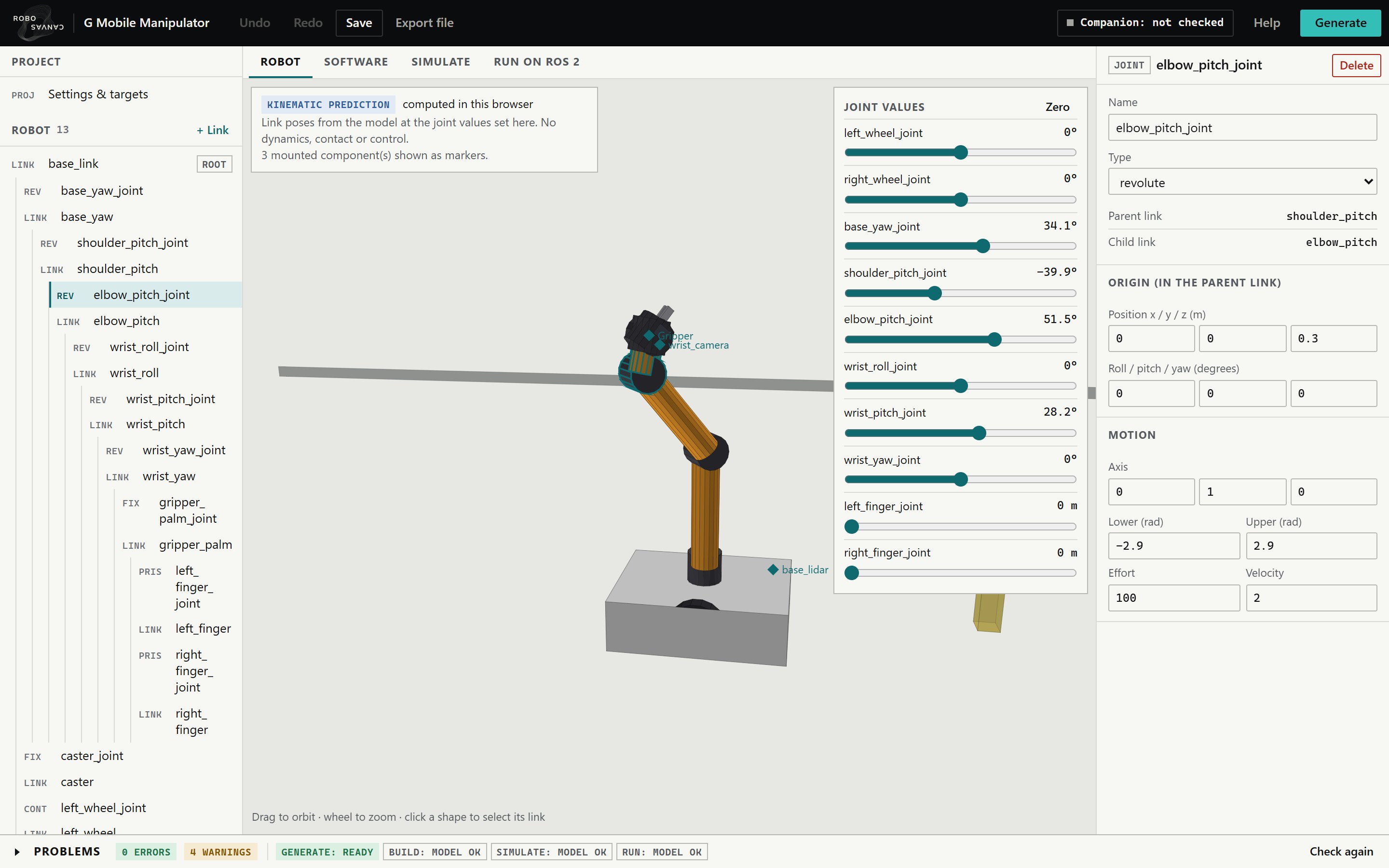
The Robot tab: link tree, the mobile manipulator posed in the 3D view, joint sliders, and the selected elbow joint's settings in the inspector.
Fig. 02Robot tab. The elbow joint of the mobile manipulator: type, origin, axis and limits.
02 / 05

Wire its software

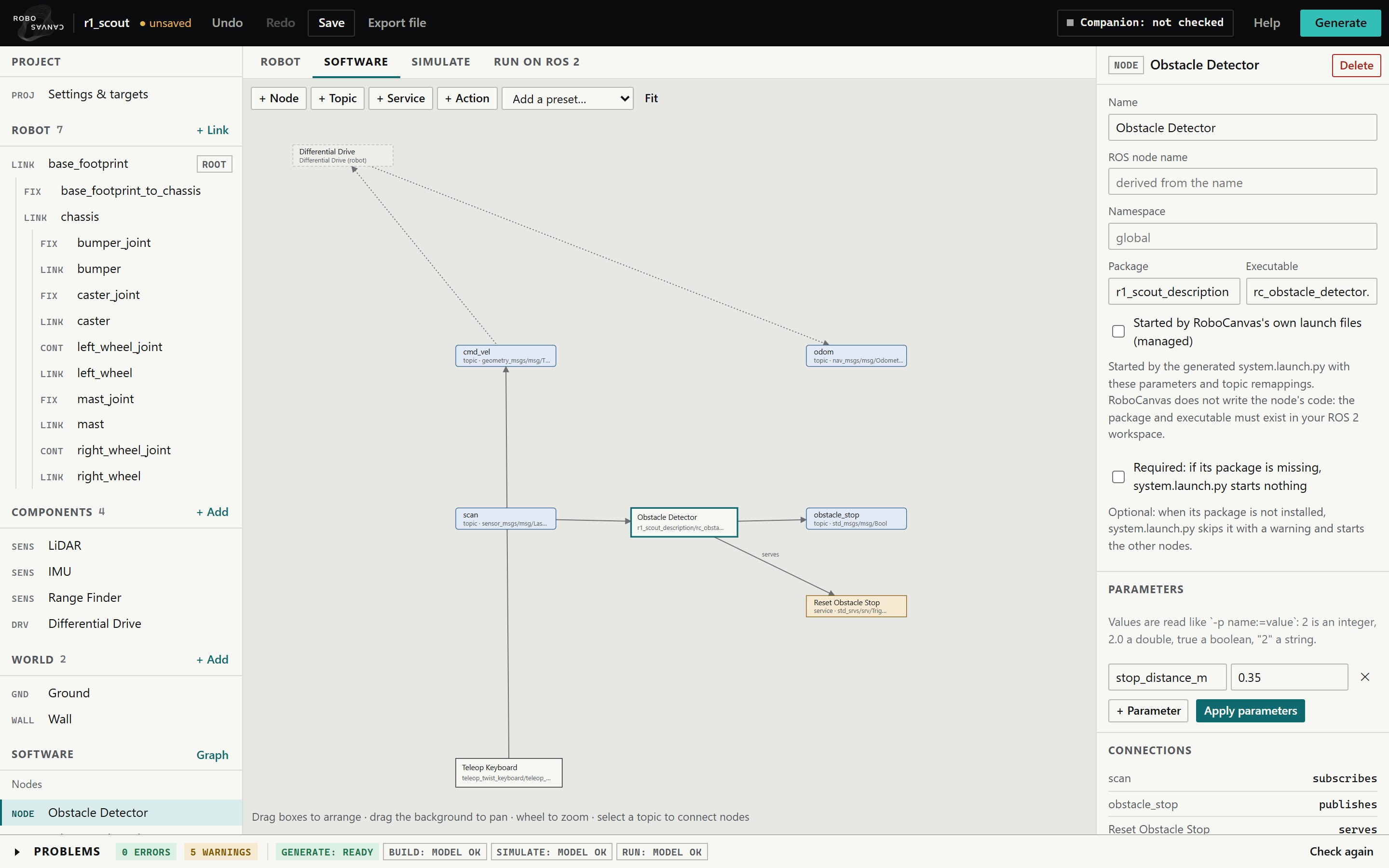
Nodes, topics, services and actions as a graph. Presets add working pieces, here obstacle detection and keyboard teleoperation, and each node says whether system.launch.py needs it.

The Software tab: a graph of the drive, topics, an obstacle detector node and a teleoperation node, with the obstacle detector's package, executable, required flag, parameters and connections in the inspector.
Fig. 03Software tab. R1 Scout after adding two of the app's own presets.
03 / 05

Validate

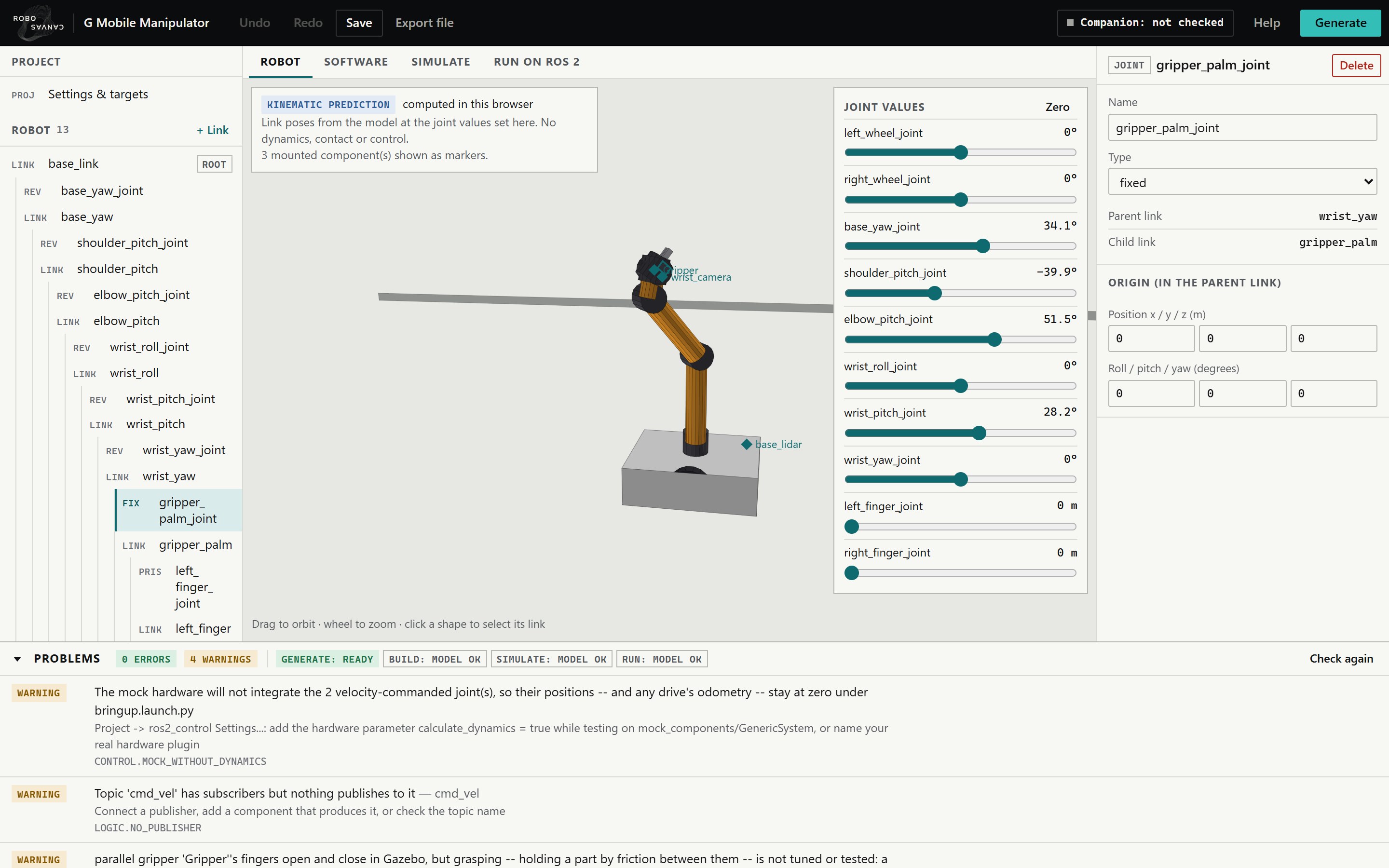
Validation runs after every change. Errors block generation; warnings state what a simulator will not do, such as a gripper that overshoots when it re-opens in Gazebo, and what to do about it.

The gripper selected in the editor: its own warnings about grasping and re-open overshoot in the inspector, and the project's warnings in the Problems panel, with zero errors and generate: ready.
Fig. 04The gripper selected: its own warnings in the inspector, the project's in the Problems panel.
04 / 05

Generate the package

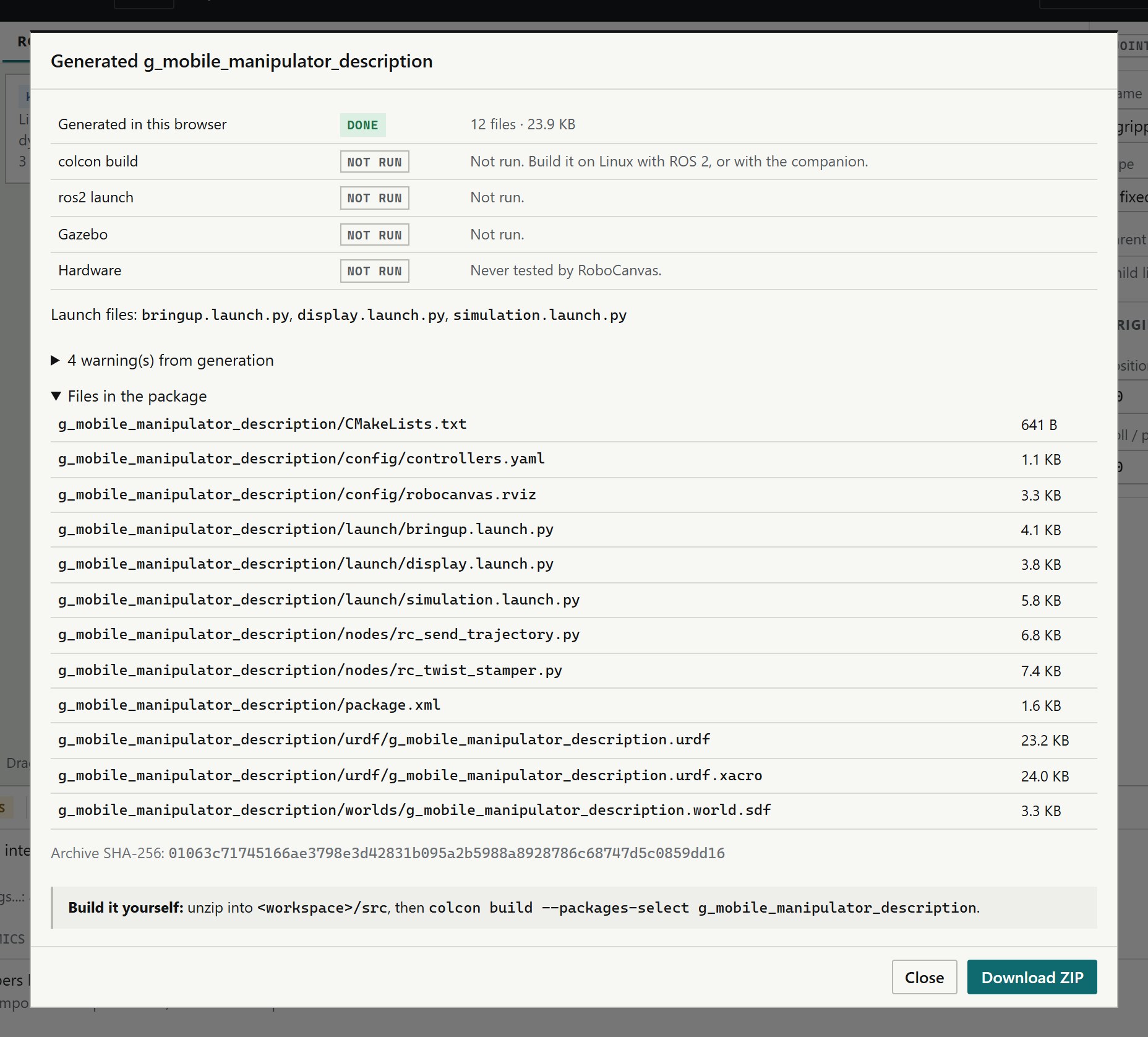
One click writes an ament_cmake package in the browser and says plainly what has not been done: no colcon build, no launch, no Gazebo. Download it as a ZIP.

The generate dialog: generated in this browser, done; colcon build, ros2 launch, Gazebo and hardware, not run; the list of twelve files; the archive's SHA-256; Download ZIP.
Fig. 05The generate dialog: the files, the archive checksum, and what was not run.
05 / 05

Build and run it yourself

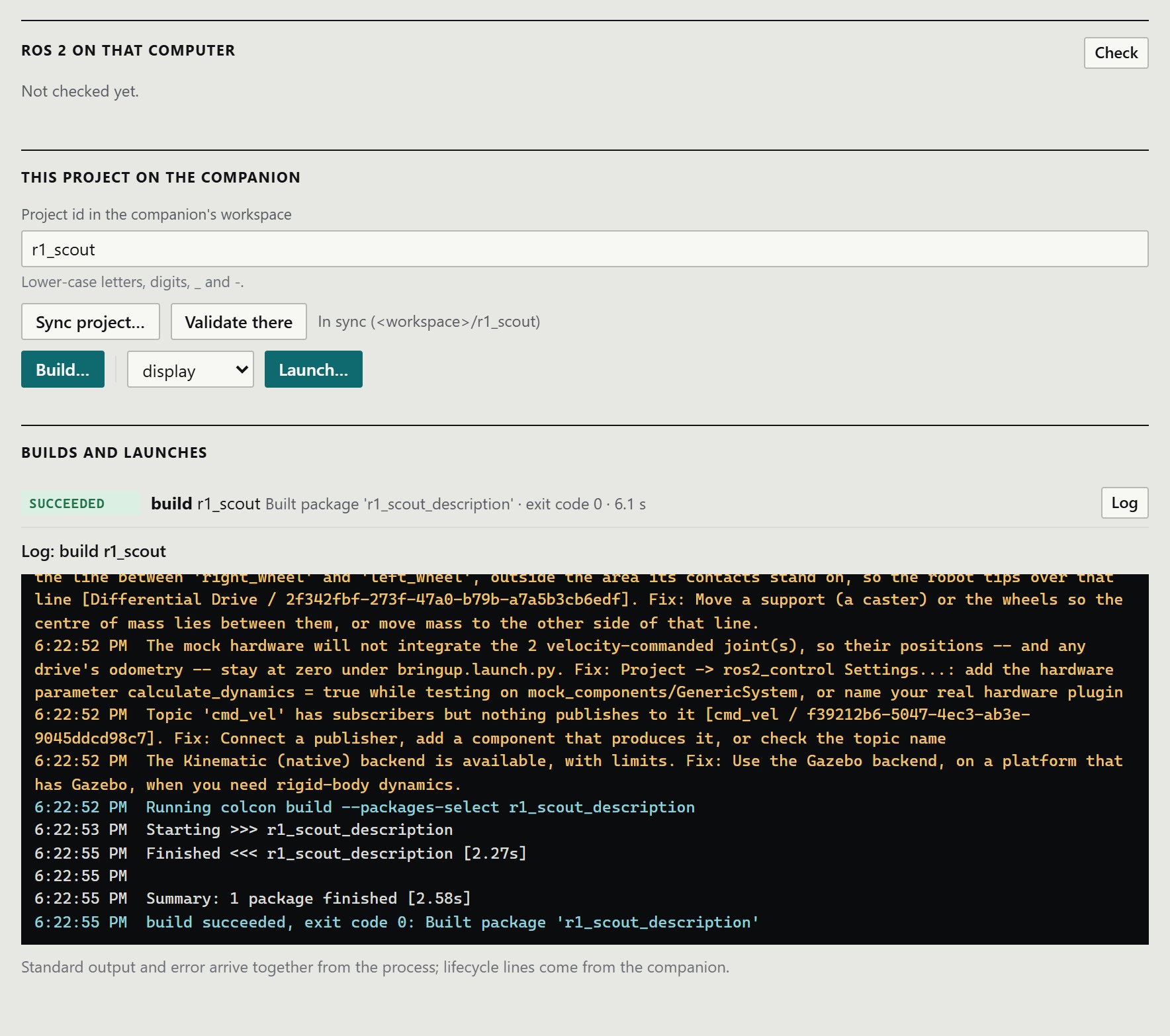
Unzip it into a workspace and use your own tools. Or let the optional companion run colcon and ros2 launch on your machine from the browser.

cd ~/rc_ws/src && unzip ~/Downloads/r1_scout_description.zip
cd ~/rc_ws && colcon build
source install/setup.bash
ros2 launch r1_scout_description simulation.launch.py
The Run on ROS 2 tab: the companion connected, R1 Scout in sync, and a colcon build that succeeded with exit code 0, with its log.
Fig. 06The companion building R1 Scout with ROS 2 Jazzy on Windows: succeeded, exit code 0.
03Your environment

The output is an ordinary ROS 2 package. You keep it, change it and run it with your own tools. Before this beta, 11 robot designs were built with colcon and run in Gazebo Harmonic on Ubuntu 24.04 with ROS 2 Jazzy, their motion measured against Gazebo's ground truth.

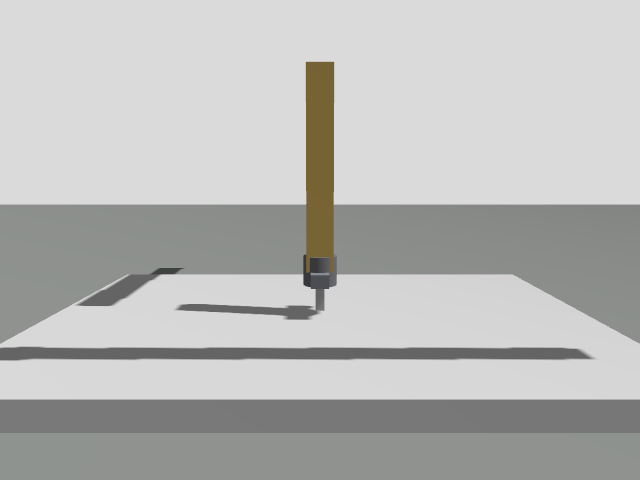
Gazebo view of a generated Cartesian gantry robot with its gripper lowered to the bed.
Fig. 07Gazebo Harmonic. A generated gantry, tool lowered to the bed (observer camera added for the test).
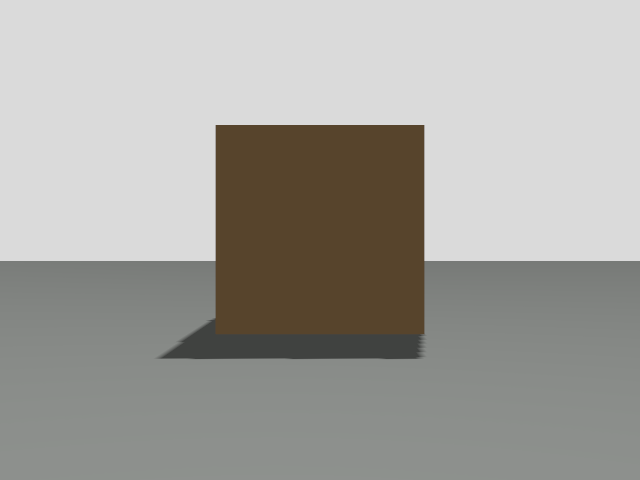
An image from a simulated RGB camera in Gazebo showing a crate in front of the robot.
Fig. 08Gazebo Harmonic. The image published by a generated rover's simulated camera.
Tested environments
  1. A

    Ubuntu 24.04 · ROS 2 Jazzy

    Verified Build, Gazebo Harmonic simulation, the kinematic simulator.

  2. B

    Windows 11 · ROS 2 Jazzy

    Verified Build, the kinematic simulator, the companion. No Gazebo on Windows.

  3. C

    Other ROS 2 distributions

    Not verified Packages are generated for Jazzy.

  4. D

    macOS

    Not supported For building and simulating.

04Samples

Four robots to start from.

Each opens as a copy in your browser, so you start from a complete robot instead of a blank file. What was verified for each, and where, is stated, not implied.

R1 Scout

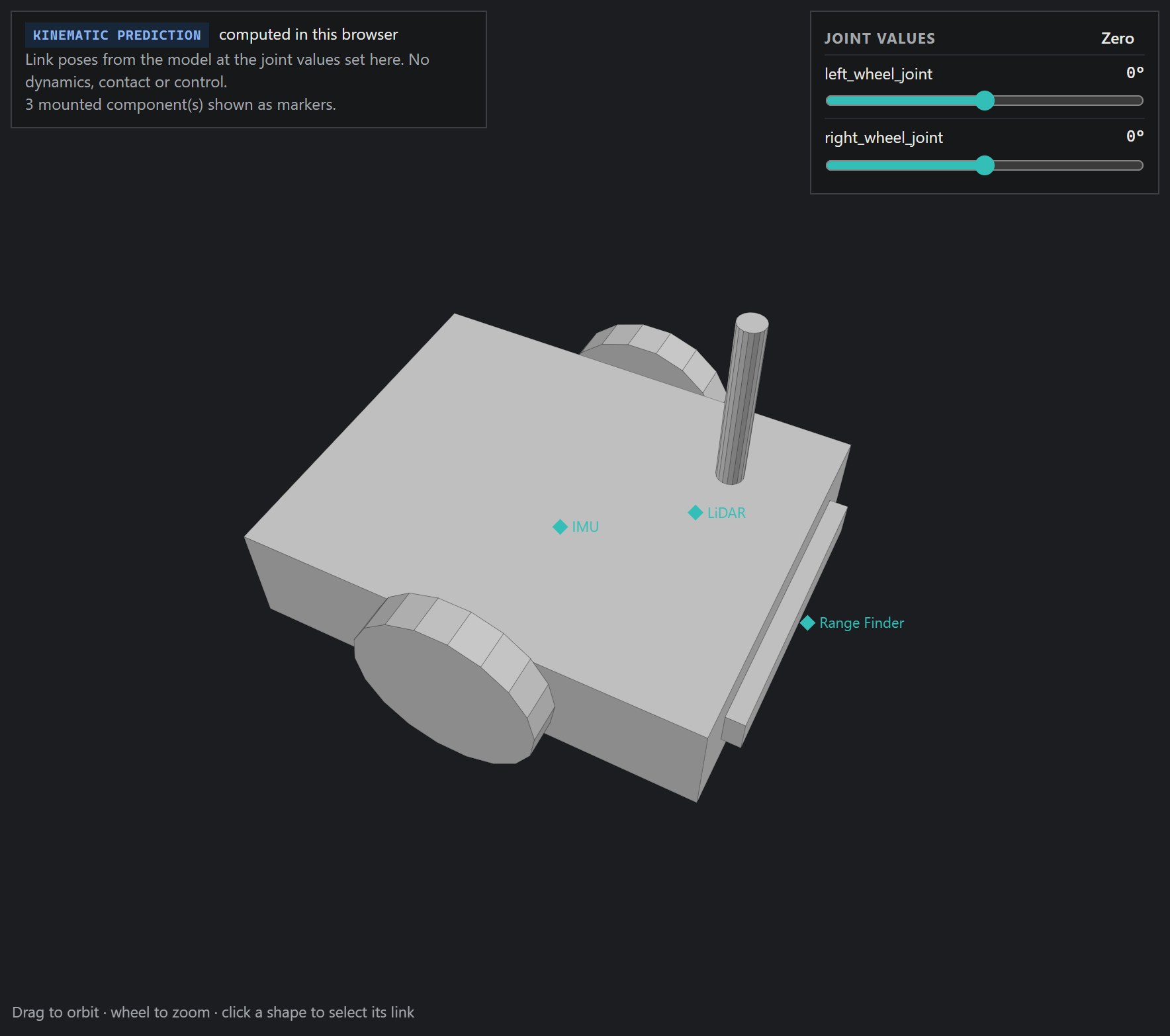
  • RobotDifferential drive, LiDAR, IMU, range finder
  • GazeboVerified Reference robot built and run in Gazebo Harmonic (Ubuntu 24.04, Jazzy).
  • Kinematic simVerified Built, launched and stopped through the companion on Windows.
  • LimitsThe range finder gives no data in Gazebo. Its centre of mass sits just ahead of the axle, so it rests nose-down; validation says so.
R1 Scout in the 3D view: a rectangular chassis, two wheels, a mast and markers for its LiDAR, IMU and range finder.
Fig. 09R1 Scout in the browser editor.

Ackermann rover

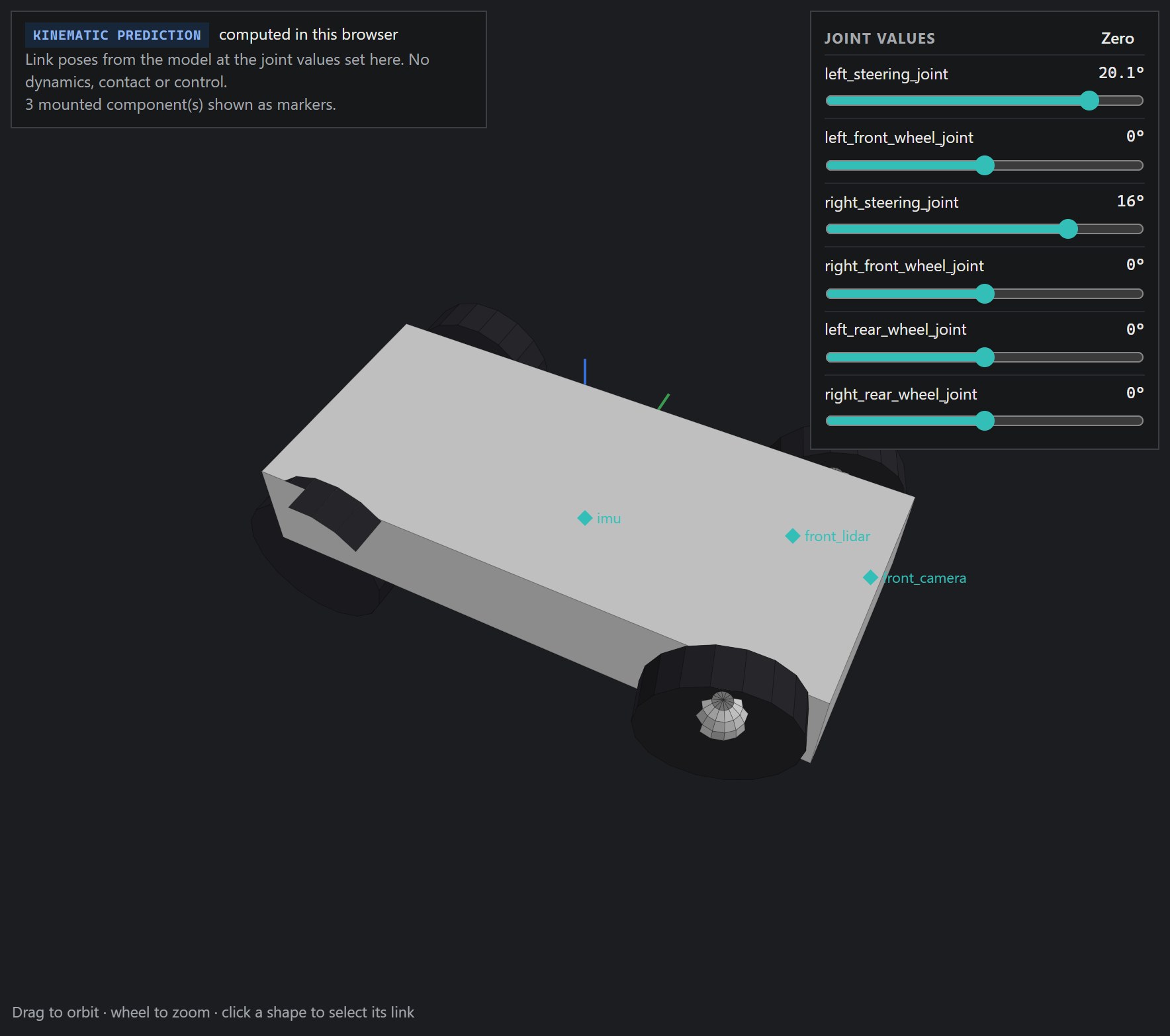
  • RobotAckermann steering, LiDAR, IMU, RGB camera
  • GazeboVerified Steering arc 0.823 rad true against 0.825 rad odometry.
  • Kinematic simVerified Builds and drives an arc on Windows.
  • LimitsCannot turn on the spot, by design. Camera simulation is slow without a GPU.
The Ackermann rover in the 3D view with its front wheels steered, and markers for its IMU, LiDAR and camera.
Fig. 10Ackermann rover, front wheels steered with the joint sliders.

6-axis arm cell

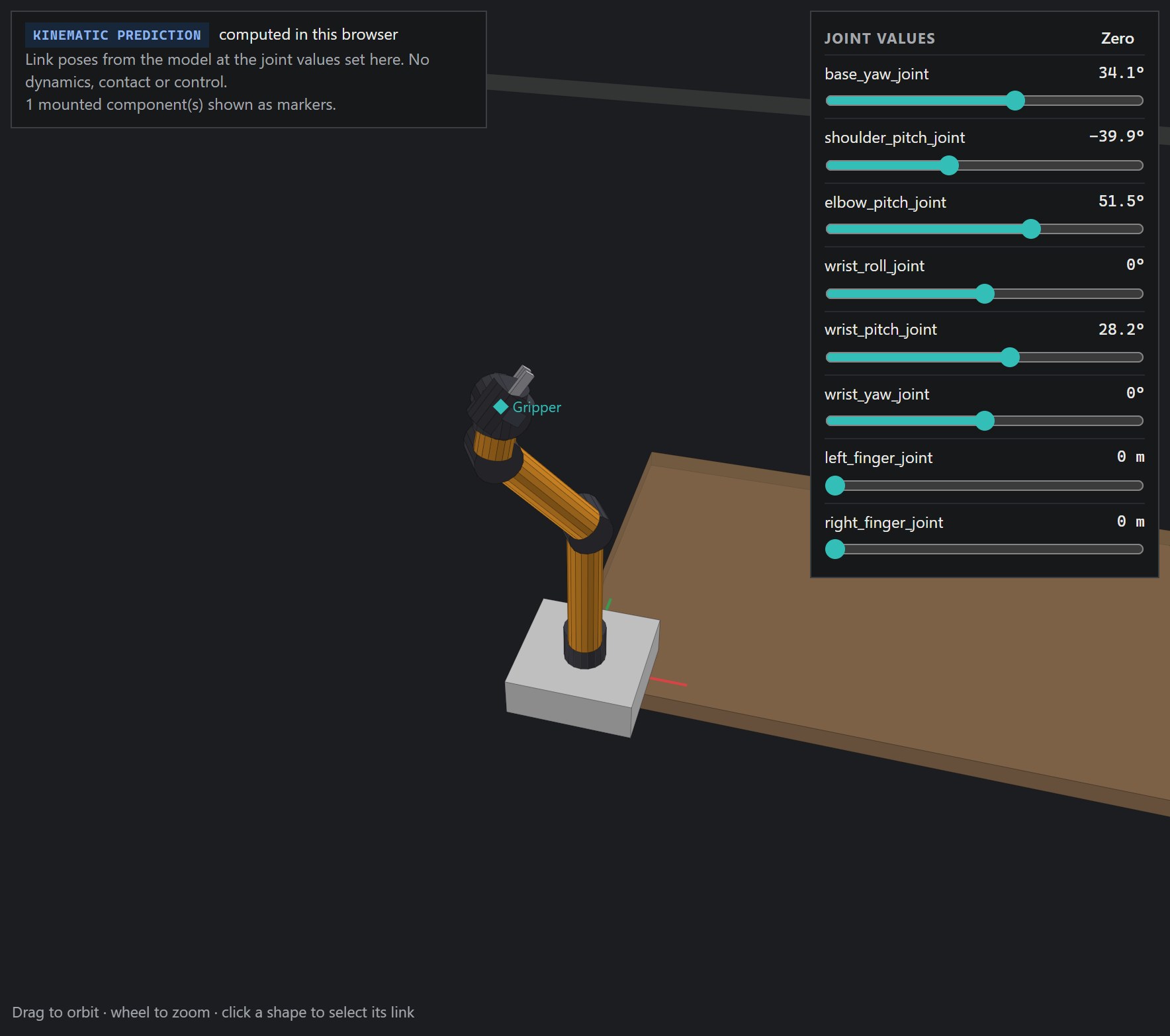
  • RobotFixed-base 6-axis arm, parallel gripper, work table
  • GazeboVerified Base anchored; joint trajectories followed over three cycles.
  • Kinematic simVerified Home, pick, lift, home ×3: 10 of 10 waypoints, sent by a test script.
  • LimitsGrasping is not tested. The app has no pick-and-place sequencing.
The 6-axis arm with its arm raised beside a work table, joint sliders on the right.
Fig. 116-axis arm cell, posed with the joint sliders.

Mobile manipulator

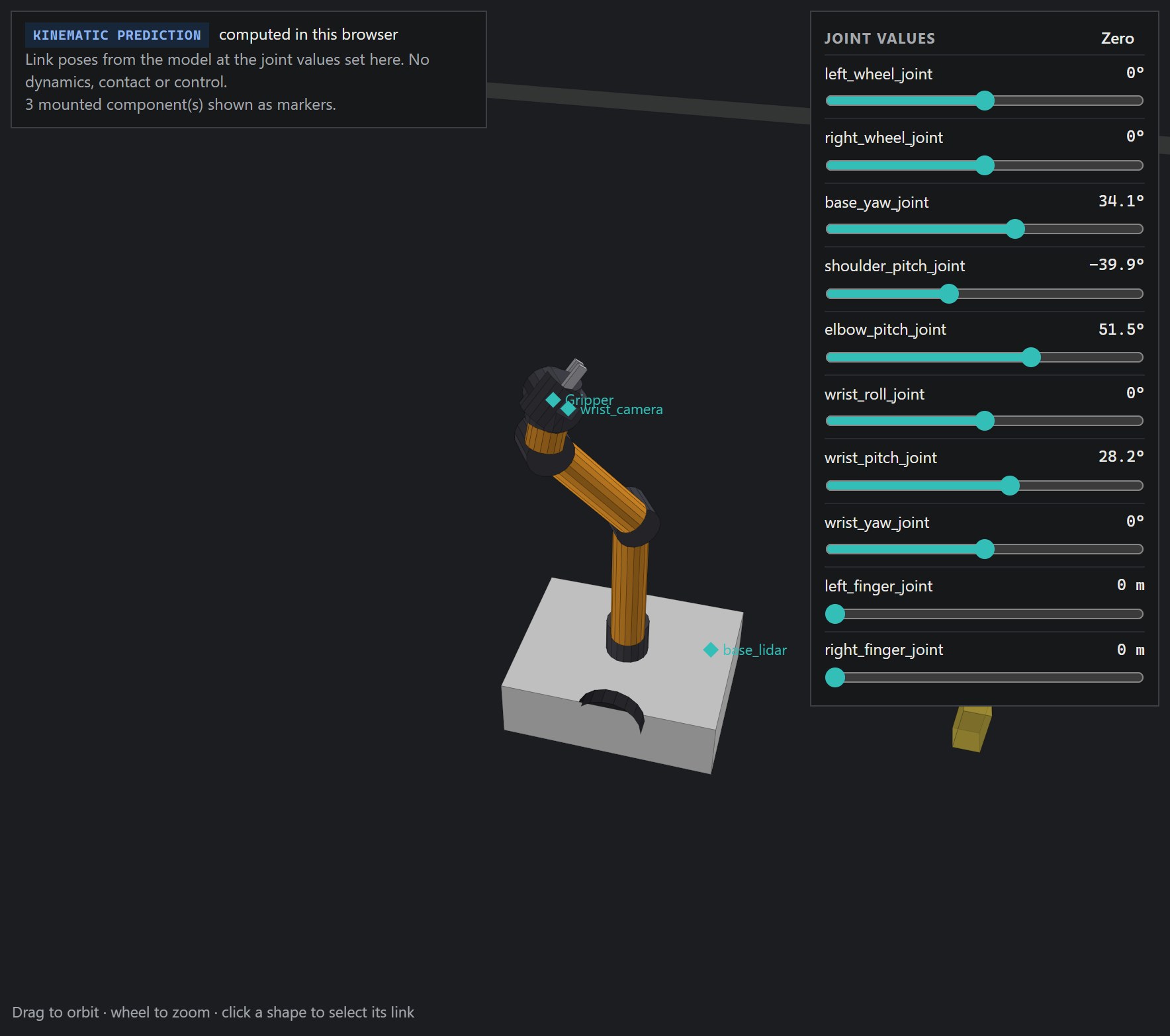
  • RobotDifferential base, 6-axis arm, parallel gripper, LiDAR, wrist camera
  • GazeboPartial Drive and arm verified; the gripper overshoots when re-opened (3 of 4 tries).
  • Kinematic simVerified The base drives; 10 of 10 arm waypoints over three cycles.
  • LimitsGripper overshoot is an open defect, and validation warns about it. Grasping is not tested.
The mobile manipulator: a wheeled base with a raised 6-axis arm and gripper, joint sliders on the right.
Fig. 12Mobile manipulator, arm posed with the joint sliders.
05Verified capabilities

What has actually been tested.

VerifiedPartial Frame onlyNot verifiedNot supported
CapabilityStatusEvidence
Robot, mechanism and software editing; validation; save and reloadVerifiedAutomated browser tests in Chrome and Edge on the release build.
ROS 2 package generationVerifiedThe same project gives byte-identical files; each package carries only the RoboCanvas nodes it uses.
colcon build, Ubuntu 24.04 and WindowsVerified11 of 11 test robots on each; 0 warnings on Ubuntu.
Differential and Ackermann drives in GazeboVerifiedMotion within about 1 % of Gazebo's ground truth.
Skid-steer and mecanum in GazeboPartialSkid-steer turns 99–103 % with a calibrated track; mecanum travels 2.6–3.6 % beyond odometry.
Tracked drive in GazeboPartialA row of wheels, not track physics; turns 2–7 % larger than odometry.
Fixed-base arms; SCARA and gantry reachVerifiedAnchored bases; tools reach the work surface; trajectories followed.
LiDAR, IMU, RGB and depth cameras in GazeboVerifiedReal simulated data, with the stated limits; GNSS only with a datum.
Range, bumper and force/torque sensors in GazeboFrame onlyGenerated as frames and topics; no data. Validation says so.
Companion on LinuxNot verifiedVerified on Windows only. On Linux, build manually.

Every row, with measurements

06Known limits

Read this before you start.

  1. 01

    Gripper overshoot

    In Gazebo, a parallel gripper with heavier fingers overshot to its open stop when re-opened, 3 of 4 tries. Open defect; validation warns.

  2. 02

    Tracks are wheels

    Tracked drives are simulated as a sprocket and road wheels. Turns are 2–7 % larger than odometry.

  3. 03

    Skid-steer and mecanum accuracy

    Skid-steer turning relies on a Gazebo-calibrated track width; measure your real robot. Mecanum travels 2.6–3.6 % further than its odometry.

  4. 04

    Sensors

    Range, bumper and force/torque sensors are frames only in Gazebo. GNSS needs a datum. The depth point cloud arrived only with a reliable subscriber.

  5. 05

    No task programming

    No pick-and-place, sequences, repeat counts or gripper timing. Grasping is not tested; vacuum is not simulated.

  6. 06

    A head start, not a substitute

    The browser preview is kinematic only. Generated packages need your review and testing before hardware. Building and running them takes ROS 2 basics: RoboCanvas shortens the setup; it does not replace learning ROS 2.

What you need
Design and generate
A desktop computer with current Chrome or Edge. Nothing to install. Firefox and Safari are not tested.
Build
ROS 2 Jazzy with colcon, on Ubuntu 24.04 or Windows.
Simulate
Ubuntu 24.04, ROS 2 Jazzy, Gazebo Harmonic, ros_gz, gz_ros2_control.
Build from the browser
The companion: Python 3.12, the Python of ROS 2 Jazzy. Verified on Windows; not yet on Linux.
07Get started

About twenty minutes, if ROS 2 is installed.

  1. 01

    Open RoboCanvas

    The engine starts in your tab; the first visit downloads about 15 MB.

  2. 02

    Load an example

    On the dashboard, press Open a copy on a sample.

  3. 03

    Edit and validate

    Change a link's mass or a joint; watch the Problems panel.

  4. 04

    Generate the package

    Generate, then Download ZIP.

  5. 05

    Build and run it locally

    colcon build, source, ros2 launch; Gazebo on Ubuntu.

  6. 06

    Connect the companion (optional)

    Download it, start it with your ROS 2 Python, pair with its code.

08Limited beta

From learning the stack to building the robot.

RoboCanvas is for students, hobbyists, first-time ROS 2 learners and developers prototyping a robot: anyone willing to learn. The beta is free, with no account. Try it on your own robot, and tell us where it breaks or where getting started was still harder than it should be.

Feedback

The report page helps you write a useful report and opens it as an email in your own mail program. Nothing is sent until you press send there.

Privacy

No accounts, cookies, analytics or third-party scripts. Projects stay in your browser and are never uploaded; the companion listens only on your computer. Privacy notice.